Running Hadoop On Ubuntu Linux (Multi-Node Cluster)
In this tutorial I will describe the required steps for setting up a distributed, multi-node Apache Hadoop cluster backed by the Hadoop Distributed File System (HDFS), running on Ubuntu Linux.
- Tutorial approach and structure
- Prerequisites
- Networking
- SSH access
- Hadoop
- conf/slaves (
masteronly) - Caveats
- Where to go from here
- Related Links
- Change Log
Hadoop is a framework written in Java for running applications on large clusters of commodity hardware and incorporates features similar to those of the Google File System (GFS) and of the MapReduce computing paradigm. Hadoop’s HDFS is a highly fault-tolerant distributed file system and, like Hadoop in general, designed to be deployed on low-cost hardware. It provides high throughput access to
In a previous tutorial, I described how to setup up a Hadoop single-node cluster on an Ubuntu box. The main goal of this tutorial is to get a more sophisticated Hadoop installation up and running, namely building a multi-node cluster using two Ubuntu boxes.
This tutorial has been tested with the following software versions:
- Ubuntu Linux 10.04 LTS (deprecated: 8.10 LTS, 8.04, 7.10, 7.04)
- Hadoop 1.0.3, released May 2012

Tutorial approach and structure
From two single-node clusters to a multi-node cluster – We will build a multi-node cluster using two Ubuntu boxes in this tutorial. In my humble opinion, the best way to do this for starters is to install, configure and test a “local” Hadoop setup for each of the two Ubuntu boxes, and in a second step to “merge” these two single-node clusters into one multi-node cluster in which one Ubuntu box will become the designated master (but also act as a slave with regard to data storage and processing), and the other box will become only a slave. It’s much easier to track down any problems you might encounter due to the reduced complexity of doing a single-node cluster setup first on each machine.
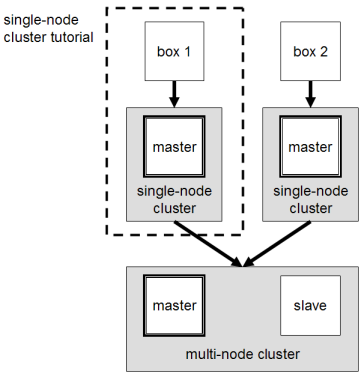
Let’s get started!
Prerequisites
Configuring single-node clusters first
The tutorial approach outlined above means that you should read now my previous tutorial on how to setup up a Hadoop single-node cluster and follow the steps described there to build a single-node Hadoop cluster on each of the two Ubuntu boxes. It is recommended that you use the ‘‘same settings’’ (e.g., installation locations and paths) on both machines, or otherwise you might run into problems later when we will migrate the two machines to the final multi-node cluster setup.
Just keep in mind when setting up the single-node clusters that we will later connect and “merge” the two machines, so pick reasonable network settings etc. now for a smooth transition later.
Done? Let’s continue then!
Now that you have two single-node clusters up and running, we will modify the Hadoop configuration to make one Ubuntu box the “master” (which will also act as a slave) and the other Ubuntu box a “slave”.
Shutdown each single-node cluster with bin/stop-all.sh before continuing if you haven’t done so already.
Networking
This should come hardly as a surprise, but for the sake of completeness I have to point out that both machines must be
able to reach each other over the network. The easiest is to put both machines in the same network with regard to
hardware and software configuration, for example connect both machines via a single hub or switch and configure the
network interfaces to use a common network such as 192.168.0.x/24.
To make it simple, we will assign the IP address 192.168.0.1 to the master machine and 192.168.0.2 to the slave machine. Update /etc/hosts on both machines with the following lines:
# Update /etc/hosts for master AND slave
192.168.0.1    master
192.168.0.2    slave
SSH access
The hduser user on the master (aka hduser@master) must be able to connect a) to its own user account on the
master – i.e. ssh master in this context and not necessarily ssh localhost – and b) to the hduser user
account on the slave (aka hduser@slave) via a password-less SSH login. If you followed my
single-node cluster tutorial, you just have to add the
hduser@master’s public SSH key (which should be in $HOME/.ssh/id_rsa.pub) to the authorized_keys file of
hduser@slave (in this user’s $HOME/.ssh/authorized_keys). You can do this manually or use the
following SSH command:
# Distribute the SSH public key of hduser@master
hduser@master:~$ ssh-copy-id -i $HOME/.ssh/id_rsa.pub hduser@slave
This command will prompt you for the login password for user hduser on slave, then copy the public SSH key for
you, creating the correct directory and fixing the permissions as necessary.
The final step is to test the SSH setup by connecting with user hduser from the master to the user account
hduser on the slave. The step is also needed to save slave’s host key fingerprint to the
hduser@master’s known_hosts file.
So, connecting from master to master…
hduser@master:~$ ssh master
The authenticity of host 'master (192.168.0.1)' can't be established.
RSA key fingerprint is 3b:21:b3:c0:21:5c:7c:54:2f:1e:2d:96:79:eb:7f:95.
Are you sure you want to continue connecting (yes/no)? yes
Warning: Permanently added 'master' (RSA) to the list of known hosts.
Linux master 2.6.20-16-386 #2 Thu Jun 7 20:16:13 UTC 2007 i686
...
hduser@master:~$
…and from master to slave.
hduser@master:~$ ssh slave
The authenticity of host 'slave (192.168.0.2)' can't be established.
RSA key fingerprint is 74:d7:61:86:db:86:8f:31:90:9c:68:b0:13:88:52:72.
Are you sure you want to continue connecting (yes/no)? yes
Warning: Permanently added 'slave' (RSA) to the list of known hosts.
Ubuntu 10.04
...
hduser@slave:~$
Hadoop
Cluster Overview (aka the goal)
The next sections will describe how to configure one Ubuntu box as a master node and the other Ubuntu box as a slave node. The master node will also act as a slave because we only have two machines available in our cluster but still want to spread data storage and processing to multiple machines.
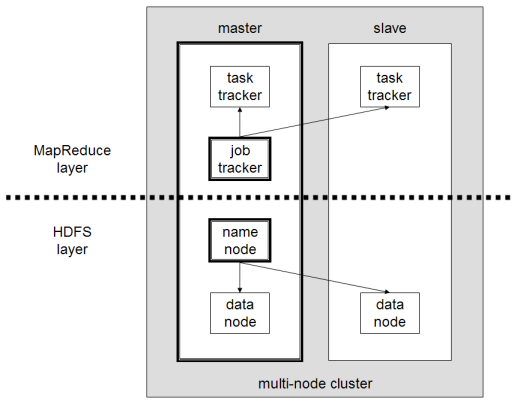
The master node will run the “master” daemons for each layer: NameNode for the HDFS storage layer, and JobTracker for the MapReduce processing layer. Both machines will run the “slave” daemons: DataNode for the HDFS layer, and TaskTracker for MapReduce processing layer. Basically, the “master” daemons are responsible for coordination and management of the “slave” daemons while the latter will do the actual data storage and data processing work.
Masters vs. Slaves
Typically one machine in the cluster is designated as the NameNode and another machine the as JobTracker, exclusively. These are the actual "master nodes". The rest of the machines in the cluster act as both DataNode and TaskTracker. These are the slaves or "worker nodes".
Configuration
conf/masters (master only)
Despite its name, the conf/masters file defines on which machines Hadoop will start secondary NameNodes in our
multi-node cluster. In our case, this is just the master machine. The primary NameNode and the JobTracker will
always be the machines on which you run the bin/start-dfs.sh and bin/start-mapred.sh scripts, respectively (the
primary NameNode and the JobTracker will be started on the same machine if you run bin/start-all.sh).
Here are more details regarding the conf/masters file:
The secondary NameNode merges the fsimage and the edits log files periodically and keeps edits log size within a limit. It is usually run on a different machine than the primary NameNode since its memory requirements are on the same order as the primary NameNode. The secondary NameNode is started by ``bin/start-dfs.sh`` on the nodes specified in ``conf/masters`` file.
Again, the machine on which bin/start-dfs.sh is run will become the primary NameNode.
On master, update conf/masters that it looks like this:
master
conf/slaves (master only)
The conf/slaves file lists the hosts, one per line, where the Hadoop slave daemons (DataNodes and TaskTrackers)
will be run. We want both the master box and the slave box to act as Hadoop slaves because we want both of
them to store and process data.
On master, update conf/slaves that it looks like this:
master
slave
If you have additional slave nodes, just add them to the conf/slaves file on master, one hostname per line.
master
slave
anotherslave01
anotherslave02
anotherslave03
conf/*-site.xml (all machines)
You must change the configuration files conf/core-site.xml, conf/mapred-site.xml and conf/hdfs-site.xml on
ALL machines as follows.
First, we have to change the
fs.default.name parameter (in
conf/core-site.xml), which specifies the
NameNode (the HDFS master) host and port. In
our case, this is the master machine.
<!-- conf/core-site.xml (ALL machines) -->
<property>
  <name>fs.default.name</name>
  <value>hdfs://master:54310</value>
  <description>The name of the default file system.  A URI whose
  scheme and authority determine the FileSystem implementation.  The
  uri's scheme determines the config property (fs.SCHEME.impl) naming
  the FileSystem implementation class.  The uri's authority is used to
  determine the host, port, etc. for a filesystem.</description>
</property>
Second, we have to change the
mapred.job.tracker parameter (in
conf/mapred-site.xml), which specifies the
JobTracker (MapReduce
master) host and port. Again, this is the master in our case.
<!-- conf/mapred-site.xml (ALL machines) -->
<property>
  <name>mapred.job.tracker</name>
  <value>master:54311</value>
  <description>The host and port that the MapReduce job tracker runs
  at.  If "local", then jobs are run in-process as a single map
  and reduce task.
  </description>
</property>
Third, we change the
dfs.replication parameter (in
conf/hdfs-site.xml) which specifies the default block replication. It defines how many machines a single file
should be replicated to before it becomes available. If you set this to a value higher than the number of available
slave nodes (more precisely, the number of DataNodes), you will start seeing a lot of “(Zero targets found, forbidden1.size=1)” type errors in the log files.
The default value of dfs.replication is 3. However, we have only two nodes available, so we set
dfs.replication to 2.
<!-- conf/hdfs-site.xml (ALL machines) -->
<property>
  <name>dfs.replication</name>
  <value>2</value>
  <description>Default block replication.
  The actual number of replications can be specified when the file is created.
  The default is used if replication is not specified in create time.
  </description>
</property>
Additional Settings
There are some other configuration options worth studying. The following information is taken from the Hadoop API Overview.
In file conf/mapred-site.xml:
- mapred.local.dir
- Determines where temporary MapReduce data is written. It also may be a list of directories.
- mapred.map.tasks
- As a rule of thumb, use 10x the number of slaves (i.e., number of TaskTrackers).
- mapred.reduce.tasks
- As a rule of thumb, use
num_tasktrackers * num_reduce_slots_per_tasktracker * 0.99. Ifnum_tasktrackersis small (as in the case of this tutorial), use(num_tasktrackers - 1) * num_reduce_slots_per_tasktracker.
Formatting the HDFS filesystem via the NameNode
Before we start our new multi-node cluster, we must format Hadoop’s distributed filesystem (HDFS) via the NameNode. You need to do this the first time you set up an Hadoop cluster.
To format the filesystem (which simply initializes the directory specified by the dfs.name.dir variable on the
NameNode), run the command
# Format the cluster's HDFS file system
hduser@master:/usr/local/hadoop$ bin/hadoop namenode -format
... INFO dfs.Storage: Storage directory /app/hadoop/tmp/dfs/name has been successfully formatted.
hduser@master:/usr/local/hadoop$
Background: The HDFS name table is stored on the NameNode’s (here: master) local filesystem in the directory
specified by dfs.name.dir. The name table is used by the NameNode to store tracking and coordination information
for the DataNodes.
Starting the multi-node cluster
Starting the cluster is performed in two steps.
- We begin with starting the HDFS daemons: the NameNode daemon is started on
master, and DataNode daemons are started on all slaves (here:masterandslave). - Then we start the MapReduce daemons: the JobTracker is started on
master, and TaskTracker daemons are started on all slaves (here:masterandslave).
HDFS daemons
Run the command bin/start-dfs.sh on the machine you want the (primary) NameNode to run on. This will bring up HDFS
with the NameNode running on the machine you ran the previous command on, and DataNodes on the machines listed in the
conf/slaves file.
In our case, we will run bin/start-dfs.sh on master:
# Start the HDFS layer
hduser@master:/usr/local/hadoop$ bin/start-dfs.sh
starting namenode, logging to /usr/local/hadoop/bin/../logs/hadoop-hduser-namenode-master.out
slave: Ubuntu 10.04
slave: starting datanode, logging to /usr/local/hadoop/bin/../logs/hadoop-hduser-datanode-slave.out
master: starting datanode, logging to /usr/local/hadoop/bin/../logs/hadoop-hduser-datanode-master.out
master: starting secondarynamenode, logging to /usr/local/hadoop/bin/../logs/hadoop-hduser-secondarynamenode-master.out
hduser@master:/usr/local/hadoop$
On slave, you can examine the success or failure of this command by inspecting the log file
logs/hadoop-hduser-datanode-slave.log.
Example output:
... INFO org.apache.hadoop.dfs.Storage: Storage directory /app/hadoop/tmp/dfs/data is not formatted.
... INFO org.apache.hadoop.dfs.Storage: Formatting ...
... INFO org.apache.hadoop.dfs.DataNode: Opened server at 50010
... INFO org.mortbay.util.Credential: Checking Resource aliases
... INFO org.mortbay.http.HttpServer: Version Jetty/5.1.4
... INFO org.mortbay.util.Container: Started org.mortbay.jetty.servlet.WebApplicationHandler@17a8a02
... INFO org.mortbay.util.Container: Started WebApplicationContext[/,/]
... INFO org.mortbay.util.Container: Started HttpContext[/logs,/logs]
... INFO org.mortbay.util.Container: Started HttpContext[/static,/static]
... INFO org.mortbay.http.SocketListener: Started SocketListener on 0.0.0.0:50075
... INFO org.mortbay.util.Container: Started org.mortbay.jetty.Server@56a499
... INFO org.apache.hadoop.dfs.DataNode: Starting DataNode in: FSDataset{dirpath='/app/hadoop/tmp/dfs/data/current'}
... INFO org.apache.hadoop.dfs.DataNode: using BLOCKREPORT_INTERVAL of 3538203msec
As you can see in slave’s output above, it will automatically format its storage directory (specified by the
dfs.data.dir parameter) if it is not formatted already. It will also create the directory if it does not exist yet.
At this point, the following Java processes should run on master…
# Java processes on master after starting HDFS daemons
hduser@master:/usr/local/hadoop$ jps
14799 NameNode
15314 Jps
14880 DataNode
14977 SecondaryNameNode
hduser@master:/usr/local/hadoop$
(the process IDs don’t matter of course)
…and the following on slave.
# Java processes on slave after starting HDFS daemons
hduser@slave:/usr/local/hadoop$ jps
15183 DataNode
15616 Jps
hduser@slave:/usr/local/hadoop$
MapReduce daemons
Run the command bin/start-mapred.sh on the machine you want the JobTracker to run on. This will bring up the
MapReduce cluster with the JobTracker running on the machine you ran the previous command on, and TaskTrackers on the
machines listed in the conf/slaves file.
In our case, we will run bin/start-mapred.sh on master:
# Start the MapReduce layer
hduser@master:/usr/local/hadoop$ bin/start-mapred.sh
starting jobtracker, logging to /usr/local/hadoop/bin/../logs/hadoop-hadoop-jobtracker-master.out
slave: Ubuntu 10.04
slave: starting tasktracker, logging to /usr/local/hadoop/bin/../logs/hadoop-hduser-tasktracker-slave.out
master: starting tasktracker, logging to /usr/local/hadoop/bin/../logs/hadoop-hduser-tasktracker-master.out
hduser@master:/usr/local/hadoop$
On slave, you can examine the success or failure of this command by inspecting the log file logs/hadoop-hduser-tasktracker-slave.log. Example output:
... INFO org.mortbay.util.Credential: Checking Resource aliases
... INFO org.mortbay.http.HttpServer: Version Jetty/5.1.4
... INFO org.mortbay.util.Container: Started org.mortbay.jetty.servlet.WebApplicationHandler@d19bc8
... INFO org.mortbay.util.Container: Started WebApplicationContext[/,/]
... INFO org.mortbay.util.Container: Started HttpContext[/logs,/logs]
... INFO org.mortbay.util.Container: Started HttpContext[/static,/static]
... INFO org.mortbay.http.SocketListener: Started SocketListener on 0.0.0.0:50060
... INFO org.mortbay.util.Container: Started org.mortbay.jetty.Server@1e63e3d
... INFO org.apache.hadoop.ipc.Server: IPC Server listener on 50050: starting
... INFO org.apache.hadoop.ipc.Server: IPC Server handler 0 on 50050: starting
... INFO org.apache.hadoop.mapred.TaskTracker: TaskTracker up at: 50050
... INFO org.apache.hadoop.mapred.TaskTracker: Starting tracker tracker_slave:50050
... INFO org.apache.hadoop.ipc.Server: IPC Server handler 1 on 50050: starting
... INFO org.apache.hadoop.mapred.TaskTracker: Starting thread: Map-events fetcher for all reduce tasks on tracker_slave:50050
At this point, the following Java processes should run on master…
# Java processes on master after starting MapReduce daemons
hduser@master:/usr/local/hadoop$ jps
16017 Jps
14799 NameNode
15686 TaskTracker
14880 DataNode
15596 JobTracker
14977 SecondaryNameNode
hduser@master:/usr/local/hadoop$
(the process IDs don’t matter of course)
…and the following on slave.
# Java processes on slave after starting MapReduce daemons
hduser@slave:/usr/local/hadoop$ jps
15183 DataNode
15897 TaskTracker
16284 Jps
hduser@slave:/usr/local/hadoop$
Stopping the multi-node cluster
Like starting the cluster, stopping it is done in two steps. The workflow however is the opposite of starting.
- We begin with stopping the MapReduce daemons: the JobTracker is stopped on
master, and TaskTracker daemons are stopped on all slaves (here:masterandslave). - Then we stop the HDFS daemons: the NameNode daemon is stopped on
master, and DataNode daemons are stopped on all slaves (here:masterandslave).
MapReduce daemons
Run the command bin/stop-mapred.sh on the JobTracker machine. This will shut down the MapReduce cluster by
stopping the JobTracker daemon running on the machine you ran the previous command on, and TaskTrackers on the machines
listed in the conf/slaves file.
In our case, we will run bin/stop-mapred.sh on master:
# Stopping the MapReduce layer
hduser@master:/usr/local/hadoop$ bin/stop-mapred.sh
stopping jobtracker
slave: Ubuntu 10.04
master: stopping tasktracker
slave: stopping tasktracker
hduser@master:/usr/local/hadoop$
At this point, the following Java processes should run on master…
# Java processes on master after stopping MapReduce daemons
hduser@master:/usr/local/hadoop$ jps
14799 NameNode
18386 Jps
14880 DataNode
14977 SecondaryNameNode
hduser@master:/usr/local/hadoop$
…and the following on slave.
# Java processes on slave after stopping MapReduce daemons
hduser@slave:/usr/local/hadoop$ jps
15183 DataNode
18636 Jps
hduser@slave:/usr/local/hadoop$
HDFS daemons
Run the command bin/stop-dfs.sh on the NameNode machine. This will shut down HDFS by stopping the NameNode daemon
running on the machine you ran the previous command on, and DataNodes on the machines listed in the conf/slaves
file.
In our case, we will run bin/stop-dfs.sh on master:
# Stopping the HDFS layer
hduser@master:/usr/local/hadoop$ bin/stop-dfs.sh
stopping namenode
slave: Ubuntu 10.04
slave: stopping datanode
master: stopping datanode
master: stopping secondarynamenode
hduser@master:/usr/local/hadoop$
(again, the output above might suggest that the NameNode was running and stopped on slave, but you can be assured that the NameNode ran on master)
At this point, the only following Java processes should run on master…
# Java processes on master after stopping HDFS daemons
hduser@master:/usr/local/hadoop$ jps
18670 Jps
hduser@master:/usr/local/hadoop$
…and the following on slave.
# Java processes on slave after stopping HDFS daemons
hduser@slave:/usr/local/hadoop$ jps
18894 Jps
hduser@slave:/usr/local/hadoop$
Running a MapReduce job
Just follow the steps described in the section Running a MapReduce job of the single-node cluster tutorial.
I recommend however that you use a larger set of input data so that Hadoop will start several Map and Reduce tasks, and
in particular, on both master and slave. After all this installation and configuration work, we want to see
the job processed by all machines in the cluster, don’t we?
Here’s the example input data I have used for the multi-node cluster setup described in this tutorial. I added four more Project Gutenberg etexts to the initial three documents mentioned in the single-node cluster tutorial. All etexts should be in plain text us-ascii encoding.
- The Outline of Science, Vol. 1 (of 4) by J. Arthur Thomson
- The Notebooks of Leonardo Da Vinci
- Ulysses by James Joyce
- The Art of War by 6th cent. B.C. Sunzi
- The Adventures of Sherlock Holmes by Sir Arthur Conan Doyle
- The Devil’s Dictionary by Ambrose Bierce
- Encyclopaedia Britannica, 11th Edition, Volume 4, Part 3
Download these etexts, copy them to HDFS, run the WordCount example MapReduce job on master, and retrieve the job
result from HDFS to your local filesystem.
Here’s the example output on master after executing the MapReduce job…
hduser@master:/usr/local/hadoop$ bin/hadoop jar hadoop*examples*.jar wordcount  /user/hduser/gutenberg /user/hduser/gutenberg-output
... INFO mapred.FileInputFormat: Total input paths to process : 7
... INFO mapred.JobClient: Running job: job_0001
... INFO mapred.JobClient:  map 0% reduce 0%
... INFO mapred.JobClient:  map 28% reduce 0%
... INFO mapred.JobClient:  map 57% reduce 0%
... INFO mapred.JobClient:  map 71% reduce 0%
... INFO mapred.JobClient:  map 100% reduce 9%
... INFO mapred.JobClient:  map 100% reduce 68%
... INFO mapred.JobClient:  map 100% reduce 100%
.... INFO mapred.JobClient: Job complete: job_0001
... INFO mapred.JobClient: Counters: 11
... INFO mapred.JobClient:   org.apache.hadoop.examples.WordCount$Counter
... INFO mapred.JobClient:     WORDS=1173099
... INFO mapred.JobClient:     VALUES=1368295
... INFO mapred.JobClient:   Map-Reduce Framework
... INFO mapred.JobClient:     Map input records=136582
... INFO mapred.JobClient:     Map output records=1173099
... INFO mapred.JobClient:     Map input bytes=6925391
... INFO mapred.JobClient:     Map output bytes=11403568
... INFO mapred.JobClient:     Combine input records=1173099
... INFO mapred.JobClient:     Combine output records=195196
... INFO mapred.JobClient:     Reduce input groups=131275
... INFO mapred.JobClient:     Reduce input records=195196
... INFO mapred.JobClient:     Reduce output records=131275
hduser@master:/usr/local/hadoop$
…and the logging output on slave for its DataNode daemon…
### logs/hadoop-hduser-datanode-slave.log (on slave)
... INFO org.apache.hadoop.dfs.DataNode: Received block blk_5693969390309798974 from  /192.168.0.1
... INFO org.apache.hadoop.dfs.DataNode: Received block blk_7671491277162757352 from /192.168.0.1
<snipp>
... INFO org.apache.hadoop.dfs.DataNode: Served block blk_-7112133651100166921 to /192.168.0.2
... INFO org.apache.hadoop.dfs.DataNode: Served block blk_-7545080504225510279 to /192.168.0.2
... INFO org.apache.hadoop.dfs.DataNode: Served block blk_-4114464184254609514 to /192.168.0.2
... INFO org.apache.hadoop.dfs.DataNode: Served block blk_-4561652742730019659 to /192.168.0.2
<snipp>
... INFO org.apache.hadoop.dfs.DataNode: Received block blk_-2075170214887808716 from /192.168.0.2 and mirrored to /192.168.0.1:50010
... INFO org.apache.hadoop.dfs.DataNode: Received block blk_1422409522782401364 from /192.168.0.2 and mirrored to /192.168.0.1:50010
... INFO org.apache.hadoop.dfs.DataNode: Deleting block blk_-2942401177672711226 file /app/hadoop/tmp/dfs/data/current/blk_-2942401177672711226
... INFO org.apache.hadoop.dfs.DataNode: Deleting block blk_-3019298164878756077 file /app/hadoop/tmp/dfs/data/current/blk_-3019298164878756077
…and on slave for its TaskTracker daemon.
### logs/hadoop-hduser-tasktracker-slave.log (on slave)
... INFO org.apache.hadoop.mapred.TaskTracker: LaunchTaskAction: task_0001_m_000000_0
... INFO org.apache.hadoop.mapred.TaskTracker: LaunchTaskAction: task_0001_m_000001_0
... task_0001_m_000001_0 0.08362164% hdfs://master:54310/user/hduser/gutenberg/ulyss12.txt:0+1561677
... task_0001_m_000000_0 0.07951202% hdfs://master:54310/user/hduser/gutenberg/19699.txt:0+1945731
<snipp>
... task_0001_m_000001_0 0.35611463% hdfs://master:54310/user/hduser/gutenberg/ulyss12.txt:0+1561677
... Task task_0001_m_000001_0 is done.
... task_0001_m_000000_0 1.0% hdfs://master:54310/user/hduser/gutenberg/19699.txt:0+1945731
... LaunchTaskAction: task_0001_m_000006_0
... LaunchTaskAction: task_0001_r_000000_0
... task_0001_m_000000_0 1.0% hdfs://master:54310/user/hduser/gutenberg/19699.txt:0+1945731
... Task task_0001_m_000000_0 is done.
... task_0001_m_000006_0 0.6844295% hdfs://master:54310/user/hduser/gutenberg/132.txt:0+343695
... task_0001_r_000000_0 0.095238104% reduce > copy (2 of 7 at 1.68 MB/s) >
... task_0001_m_000006_0 1.0% hdfs://master:54310/user/hduser/gutenberg/132.txt:0+343695
... Task task_0001_m_000006_0 is done.
... task_0001_r_000000_0 0.14285716% reduce > copy (3 of 7 at 1.02 MB/s) >
<snipp>
... task_0001_r_000000_0 0.14285716% reduce > copy (3 of 7 at 1.02 MB/s) >
... task_0001_r_000000_0 0.23809525% reduce > copy (5 of 7 at 0.32 MB/s) >
... task_0001_r_000000_0 0.6859089% reduce > reduce
... task_0001_r_000000_0 0.7897389% reduce > reduce
... task_0001_r_000000_0 0.86783284% reduce > reduce
... Task task_0001_r_000000_0 is done.
... Received 'KillJobAction' for job: job_0001
... task_0001_r_000000_0 done; removing files.
... task_0001_m_000000_0 done; removing files.
... task_0001_m_000006_0 done; removing files.
... task_0001_m_000001_0 done; removing files.
If you want to inspect the job’s output data, you need to retrieve the job results from HDFS to your local file system (see instructions in the single-node cluster tutorial.
Caveats
java.io.IOException: Incompatible namespaceIDs
If you observe the error “java.io.IOException: Incompatible namespaceIDs” in the logs of a DataNode
(logs/hadoop-hduser-datanode-.log), chances are you are affected by issue
HDFS-107 (formerly known as
HADOOP-1212).
The full error looked like this on my machines:
  ... ERROR org.apache.hadoop.dfs.DataNode: java.io.IOException: Incompatible namespaceIDs in /app/hadoop/tmp/dfs/data: namenode namespaceID = 308967713; datanode namespaceID = 113030094
        at org.apache.hadoop.dfs.DataStorage.doTransition(DataStorage.java:281)
        at org.apache.hadoop.dfs.DataStorage.recoverTransitionRead(DataStorage.java:121)
        at org.apache.hadoop.dfs.DataNode.startDataNode(DataNode.java:230)
        at org.apache.hadoop.dfs.DataNode.(DataNode.java:199)
        at org.apache.hadoop.dfs.DataNode.makeInstance(DataNode.java:1202)
        at org.apache.hadoop.dfs.DataNode.run(DataNode.java:1146)
        at org.apache.hadoop.dfs.DataNode.createDataNode(DataNode.java:1167)
        at org.apache.hadoop.dfs.DataNode.main(DataNode.java:1326)
There are basically two solutions to fix this error as I will describe below.
Solution 1: Start from scratch
This step fixes the problem at the cost of erasing all existing data in the cluster’s HDFS file system.
- Stop the full cluster, i.e. both MapReduce and HDFS layers.
- Delete the data directory on the problematic DataNode: the directory is specified by
dfs.data.dirinconf/hdfs-site.xml; if you followed this tutorial, the relevant directory is/app/hadoop/tmp/dfs/data. - Reformat the NameNode. WARNING: all HDFS data is lost during this process!
- Restart the cluster.
When deleting all the HDFS data and starting from scratch does not sound like a good idea (it might be ok during the initial setup/testing), you might give the second approach a try.
Solution 2: Manually update the namespaceID of problematic DataNodes
Big thanks to Jared Stehler for the following suggestion. This workaround is “minimally invasive” as you only have to edit a single file on the problematic DataNodes:
- Stop the problematic DataNode(s).
- Edit the value of
namespaceIDin${dfs.data.dir}/current/VERSIONto match the corresponding value of the current NameNode in${dfs.name.dir}/current/VERSION. - Restart the fixed DataNode(s).
If you followed the instructions in my tutorials, the full paths of the relevant files are:
- NameNode: /app/hadoop/tmp/dfs/name/current/VERSION
- DataNode: /app/hadoop/tmp/dfs/data/current/VERSION (background:
dfs.data.diris by default set to${hadoop.tmp.dir}/dfs/data, and we sethadoop.tmp.dirin this tutorial to/app/hadoop/tmp).
If you wonder how the contents of VERSION look like, here’s one of mine:
namespaceID=393514426
storageID=DS-1706792599-10.10.10.1-50010-1204306713481
cTime=1215607609074
storageType=DATA_NODE
layoutVersion=-13
Where to go from here
If you’re feeling comfortable, you can continue your Hadoop experience with my tutorial on how to code a simple MapReduce job in the Python programming language which can serve as the basis for writing your own MapReduce programs.
Related Links
From yours truly:
- Running Hadoop On Ubuntu Linux (Single-Node Cluster)
- Writing An Hadoop MapReduce Program In Python
- Benchmarking and Stress Testing an Hadoop Cluster with TeraSort, TestDFSIO & Co.
From other people:
- How to debug MapReduce programs
- Hadoop API Overview (Hadoop 2.x)
- Bug HDFS-107: DataNodes should be formatted when the NameNode is formatted
- Bug MAPREDUCE-63: TaskTracker falls into an infinite loop during
reduce > copystep
Change Log
Only major changes are listed here.
- 2011-07-17: Renamed the Hadoop user from
hadooptohduserbased on readers’ feedback. This should make the distinction between the local Hadoop user (nowhduser), the local Hadoop group (hadoop), and the Hadoop CLI tool (hadoop) more clear.